
PC Game Booster Tutorial
In this quick tutorial, you will learn how to use the various features of PC Game Booster to optimize your computer performance and reliability in order to boost game FPS and reduce in-game lag, thus improving your gaming experience.
To get started, launch PC Game Booster from the shortcut placed on your Desktop or from the Start Menu.
|
Some security software may prevent the PC Game Booster installer from creating a shortcut on the Desktop; in this case, navigate to the PC Game Booster installation directory: C:\Program Files\Smart PC Utilities\PC Game Booster and manually create a shortcut for the GameBooster.exe file on your Desktop.
|
|
If PC Game Booster is configured to run automatically on Windows startup, you can launch it by double-clicking on the PC Game Booster icon in the system tray.
|
User Interface
The navigation bar located at the top of PC Game Booster's user interface provides links to all PC Game Booster's main features.

My Games
Your all-in-one games library where PC Game Booster automatically imports installed games including games from Steam, Ubisoft, Epic Games, and other game paltforms (you can still add your games manually). My Games offers powerful management and filtering options to help you organize, manage and launch your games from one place. (see My Games)
|
To access your game collection even when PC Game Booster is not running, use the My Games Desktop widget, which is a feature of the PC Game Booster system tray application (GameBoosterTray). You can open the My Games widget either by right-clicking on the PC Game Booster icon in the system tray and selecting My Games or by using the My Games hotkey (Ctrl + Shift + M).
|
System Optimizer
The System Optimizer feature helps you apply system tweaks that enhance overall performance and minimize interruptions during gameplay. Whether you're looking to reduce background activity or speed up system responsiveness, PC Game Booster provides clear, easy-to-understand explanations for each optimization option—so you can choose what works best for your setup. (see System Optimizer)
|
System Optimizer is designed with safety in mind. It automatically backs up any system settings it modifies, allowing you to restore your previous configuration if needed. You can also enable the option to create a system restore point before applying any tweaks, giving you extra peace of mind.
|
System Diagnostics
The System Diagnostics feature gives power users a deep look into their system’s hardware configuration—including details about the motherboard, CPU, memory, and more. This information helps you identify upgrade opportunities and determine which games your PC can handle smoothly. (see System Diagnostics)
You can also use System Diagnostics to track your hardware’s health and performance in real time. Monitor key metrics like CPU usage, GPU load, and temperature to ensure your system stays cool and responsive during intense gaming sessions.
|
You don’t need to keep PC Game Booster open to stay informed. Just right-click the PC Game Booster icon in your system tray and select System Monitor to access live performance data anytime through a lightweight widget.
|
 The Menu button in the upper right corner of PC Game Booster's interface allows you to access PC Game Booster Settings, Privacy Policy, About, and other features and resources that let you customize and learn more about the software.
At the bottom of the user interface, there is the Turn on Game Mode button that can trigger Game Mode on and off, and the Quick Access button that allows access to the most frequently used PC Game Booster features.

Game Mode
Game Mode is designed to give your PC a performance boost exactly when you need it—during gameplay. When activated, PC Game Booster suspends unnecessary system features, applies targeted tweaks, and channels your computer’s resources toward the game you're playing for a smoother, faster experience. To activate Game Mode, click the Turn on Game Mode button.
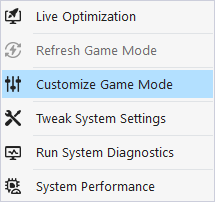
Select Customize Game Mode from the Quick Access menu to open the Game Mode settings window. Here, you can choose which system features and app components to suspend or optimize, and which tweaks to apply when Game Mode kicks in.
Launching a game from My Games automatically triggers Game Mode. You can also use the Game Mode hotkey (Ctrl + Shift + G) to activate Game Mode even if PC Game Booster is not running.
When you click the Turn on Game Mode button, PC Game Booster will display the Game Mode dialog box where you can configure the various Game Mode settings and optimizations.
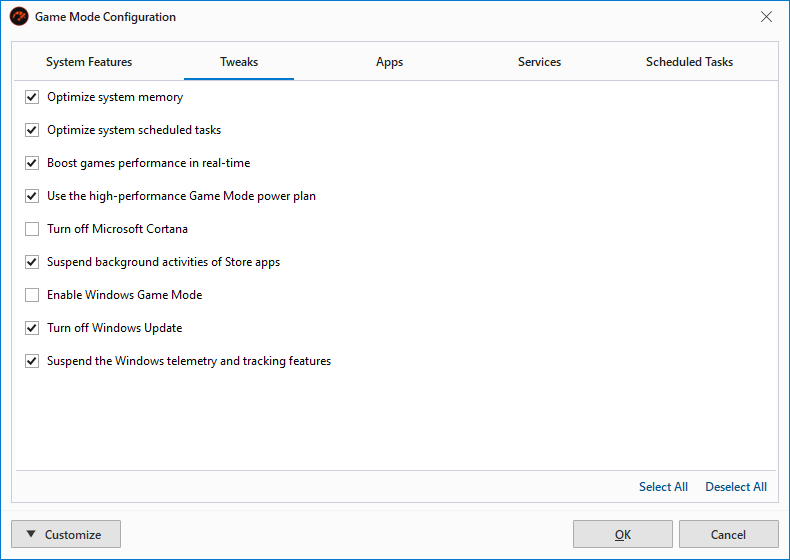
In System Features and Tweaks tabs, you’ll find a list of options that let you disable system features that are not essential during gaming. Disabling these helps conserve power and free up system resources. You can also apply performance and stability tweaks to further enhance your gaming experience. Each option includes a helpful tooltip explaining what it does, so you can make informed choices.
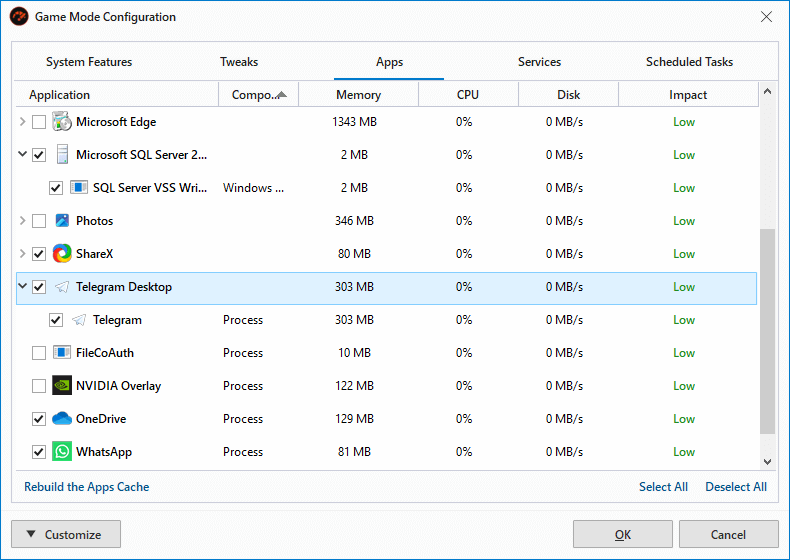
Apps, Services, and Scheduled Tasks tabs display a curated list of background processes, third-party Windows services, and scheduled tasks that can be safely paused or terminated. Security-critical and essential system components are automatically excluded to ensure stability. By suspending these non-essential items, PC Game Booster reduces system load and allocates more resources to your game.
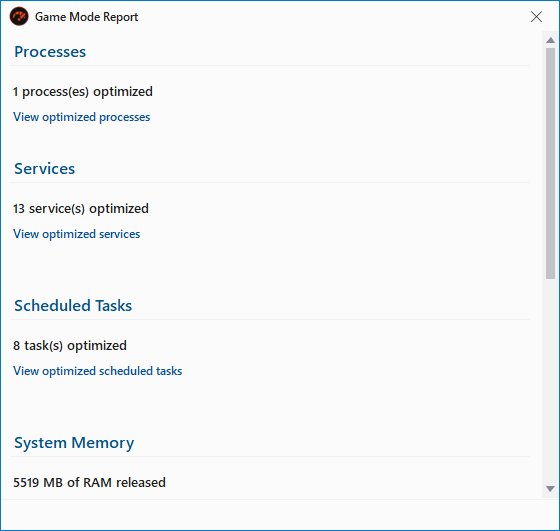
Once Game Mode is activated, PC Game Booster can display a Game Mode Report (if enabled in settings). This report gives you a quick summary of all the optimizations applied—such as suspended processes, disabled services, and system tweaks—so you know exactly what’s been done to boost performance.
|
For a deeper look into the changes made during Game Mode activation and deactivation, you can review the Game Mode log (also optional in settings). This log provides a detailed breakdown of every adjustment PC Game Booster has made. You can find the log file here: C:\Users\[Your Account Name]\AppData\Local\Smart PC Utilities\PC Game Booster\Logs\Game Mode.log
|
Sometimes, you may need to reapply Game Mode optimizations—especially after launching apps that are no longer needed. Instead of toggling Game Mode off and on again, simply use the Refresh Game Mode option from the Quick Access menu. This will reapply only the settings that were reversed by the system or other apps, keeping your gaming environment optimized without disruption.
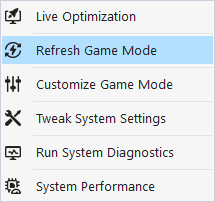
Beyond suspending unnecessary components and applying system tweaks, PC Game Booster includes a powerful feature called Live Optimization. It continuously monitors running apps and processes, prioritizing your game and essential applications to ensure they get top-tier access to system resources. At the same time, it limits background processes from hogging performance—keeping your gameplay smooth and responsive. (See the Live Optimization section for more details.)
You can deactivate Game Mode in three easy ways:
-
Click the Turn Off Game Mode button in the interface
-
Use the Game Mode hotkey: Ctrl + Shift + G
-
Right-click the PC Game Booster icon in the system tray and select Deactivate Game Mode
|
Game Mode changes are completely safe and temporary. All optimizations made to your system settings are automatically reversed when you turn off Game Mode. Even if you forget to deactivate it manually, PC Game Booster will restore your system to its normal state the next time you start your computer.
|