
Live Optimization
Live Optimization is a dynamic feature in PC Game Booster that enhances your system’s performance and responsiveness while gaming or using resource-intensive applications. It works by intelligently managing process priorities and memory usage in real time.
🚀 How It Works
-
Priority Boosting: Detects active game and app processes and elevates their processing priority, ensuring they receive maximum access to CPU and system resources.
-
Background Throttling: Identifies unnecessary background processes and restricts their resource access, preventing interference with foreground performance.
-
Memory Reclamation: Frees up system memory by trimming usage from inactive or low-priority processes.
Live Optimization is part of Game Mode. To enable it, check the Boost games performance in real-time option in the Game Mode configuration window.
|
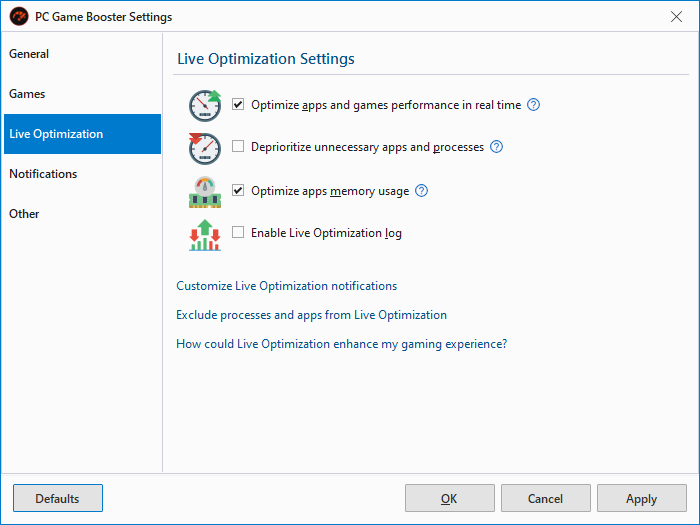
When Game Mode is activated, PC Game Booster automatically enables Live Optimization and displays a confirmation notification in the lower-right corner of your screen.
⚙️ Live Optimization Settings
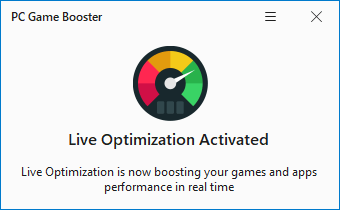
You can customize Live Optimization behavior in Settings > Live Optimization:
|
Optimize apps and games performance in real time
|
Elevates the priority of active games and apps. Priority is restored to default when you switch away.
|
|
Deprioritize unnecessary apps and processes
|
Lowers the priority of background processes to prevent them from consuming system resources.
|
|
Optimize apps memory usage
|
Reclaims memory from inactive processes to make more RAM available for active games and apps.
|
|
Enable Live Optimization log
|
Records all Live Optimization actions for review and troubleshooting.
|
🔔 Notifications
When Live Optimization boosts or throttles a process, a notification appears in the lower-right corner.
You can customize Live Optimization notifications by going to Settings > Notifications > Live Optimization Notifications
|
You can manually activate and deactivate Live Optimization by right-clicking on the PC Game Booster icon in the system tray and selecting Activate Live Optimization.
|
📄 Live Optimization Log
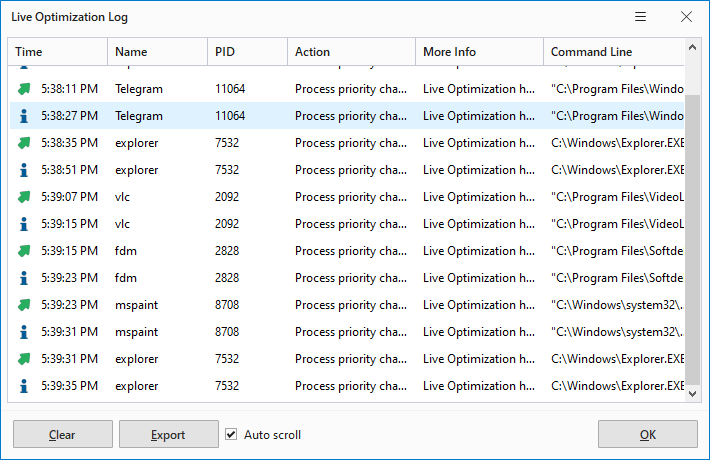
The Live Optimization Log provides a detailed record of all real-time optimization actions performed by PC Game Booster. It helps you monitor how process priorities are adjusted to enhance system performance.
To open the Live Optimization Log:
-
Right-click the PC Game Booster icon in the system tray
-
Select Live Optimization Log.
Each entry includes:
-
Time – When the optimization occurred
-
Name – Process name
-
PID – Process ID
-
Action – Type of optimization (e.g., priority change)
-
Command Line – Full path and launch parameters of the process
|
Clear
|
Removes all displayed log entries.
|
|
Export
|
Saves the log as an HTML file for review or sharing.
|
Right-click any log entry to access these options:
|
Open Location
|
Opens the folder containing the selected process’s executable file
|
|
Search Online
|
Performs a web search to identify or learn more about the process.
|
|
Exclude Process
|
Prevents the selected process from being optimized by Live Optimization.
|
|
End Process
|
Immediately terminates the selected process.
|
|
End Process Tree
|
Terminates the selected process and all its child processes.
|
You can manage Live Optimization exclusions by going to Settings > Live Optimization > Exclude processes and apps from Live Optimization.
|