
Game Mode
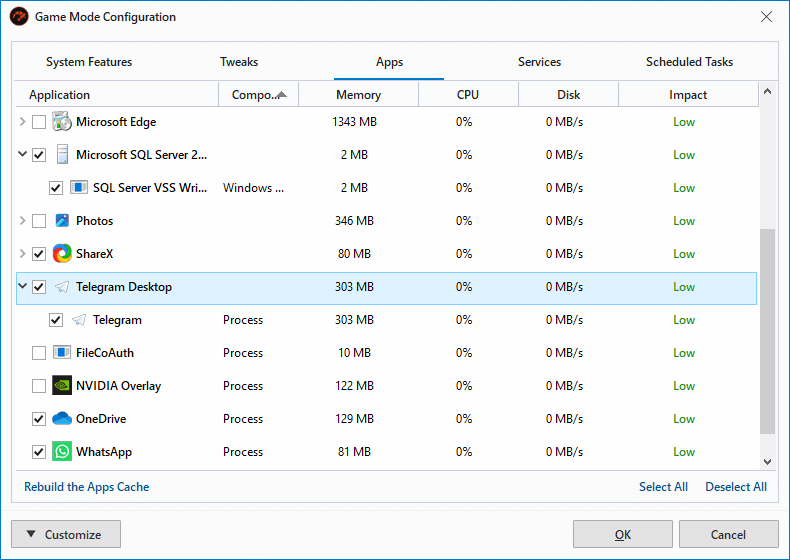
The Game Mode Configuration window in PC Game Booster allows you to fine-tune how your system behaves when Game Mode is activated. It provides full control over which features, services, and background activities are suspended or optimized to maximize gaming performance.
System Features
This tab lists system-level features that can be temporarily disabled during Game Mode to free up resources and reduce interruptions. Each option includes a tooltip explaining its impact and how PC Game Booster applies it.
|
Use the Select All option with caution. It’s recommended to review each item individually to avoid disabling features you may need.
|
Tweaks
This tab includes performance-enhancing tweaks such as:
-
Freeing up system memory
-
Switching to the high-performance Game Mode power plan
-
Suspending Windows Update and telemetry
-
Disabling Cortana and background Store apps
Some advanced tweaks are available only in the Pro version. For more details, see the Game Mode Tweaks page.
Apps
The Apps tab displays currently running applications and their active components, including:
-
Processes
-
Services
-
Scheduled tasks
PC Game Booster filters out critical system and security apps, showing only components that can be safely suspended. You can:
-
Suspend an entire app or specific components
-
View CPU, memory, and disk usage to assess performance impact
Right-click a component to open the context menu that contains advanced features that help you manage and investigate the selected component:
-
Exclude: Hide the component from future scans and prevent optimization.
-
Open Location: Open the location of the component's file in the File Explorer.
-
File Properties: Open the File Properties dialog of the selected component.
-
Search Online: Quickly look up unknown processes or services to determine their purpose and safety.
|
PC Game Booster caches app data for faster loading. If you've installed new software, click Rebuild the Apps Cache to update the app cache.
|
Services
Displays third-party and app-related Windows services that couldn't be linked to a specific installed application. These can be selectively suspended to reduce background activity.
Scheduled Tasks
Lists scheduled tasks from third-party apps that are not associated with any installed software. These tasks may run in the background and consume system resources, and can be suspended during Game Mode.
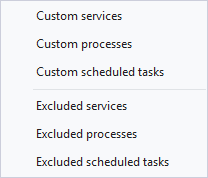
The Customize button in the Game Mode Configuration window provides advanced control over which system components are included or excluded from Game Mode optimization. This allows you to tailor Game Mode to your specific setup, ensuring that only safe and relevant processes, services, and tasks are suspended during gameplay.
Custom services
Add a Windows service by name to the Game Mode configuration. This allows you to suspend services that may consume resources but aren’t linked to installed apps.
Custom processes
Manually add a specific process (e.g., app.exe) to be terminated when Game Mode is activated. Useful for background apps not automatically detected by PC Game Booster.
Add a Windows service by name to the Game Mode configuration. This allows you to suspend services that may consume resources but aren’t linked to installed apps.
Custom processes
Manually add a specific process (e.g., app.exe) to be terminated when Game Mode is activated. Useful for background apps not automatically detected by PC Game Booster.
Custom scheduled tasks
Include a scheduled task that should be paused during Game Mode. Ideal for tasks that run periodically and may interfere with performance.
Excluded services
This option ensures that a selected service is never suspended or listed for optimization.
Excluded processes
Prevent a specific process from being suspended or displayed in the Game Mode window. Use this for critical processes that should always remain active.
Excluded scheduled tasks
Prevent a scheduled task from being affected by Game Mode. Useful for tasks related to security, updates, or system maintenance.
Prevent a scheduled task from being affected by Game Mode. Useful for tasks related to security, updates, or system maintenance.