
Tweaks
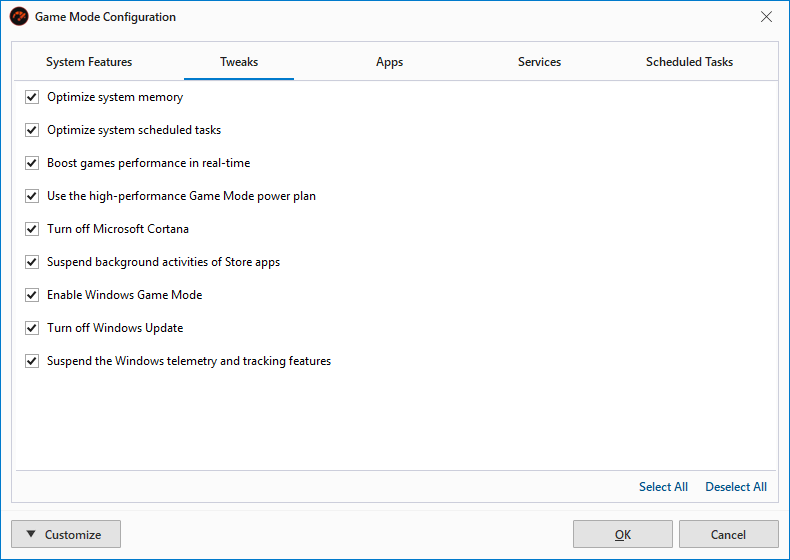
Frees up unused or cached memory to make more RAM available for games. This helps reduce stuttering and improves responsiveness during gameplay, especially on systems with limited memory.
Suspends non-essential scheduled tasks that may run in the background and consume CPU or disk resources.
Activates the Live Optimization feature when Game Mode is turned on.
Switches the system to a custom high-performance power plan designed for gaming. This disables power-saving features that may throttle CPU or GPU performance, ensuring maximum hardware utilization.
Disables Cortana, the Windows virtual assistant, which can consume memory and CPU resources in the background. Turning it off helps reduce unnecessary system load during gaming.
Pauses background tasks and updates related to Microsoft Store apps. This prevents resource usage from apps running silently in the background, improving system responsiveness.
Activates Windows' built-in Game Mode, which prioritizes gaming processes and reduces background activity. This complements PC Game Booster’s optimizations for better performance.
Temporarily disables Windows Update to prevent automatic downloads, installations, or restarts during gameplay. This avoids performance drops and interruptions caused by update activity.
Disables Windows telemetry services that collect and send usage data to Microsoft.