
Tamper Protection
Windows Security is the built-in antivirus and threat protection suite in Microsoft Windows. It helps safeguard your system against viruses, malware, and other security threats through features like real-time protection and automatic threat response.
To enhance gaming performance, PC Game Booster can temporarily disable real-time protection during Game Mode. This reduces background scanning and CPU usage, freeing up resources for smoother gameplay.
To enhance gaming performance, PC Game Booster can temporarily disable real-time protection during Game Mode. This reduces background scanning and CPU usage, freeing up resources for smoother gameplay.
🔒 What Is Tamper Protection?
Tamper Protection is a security feature that prevents third-party applications—including PC Game Booster—from modifying critical Windows Security settings. By default, it blocks changes to real-time protection and other core functions. To allow PC Game Booster to manage real-time protection during Game Mode, you must disable Tamper Protection.
⚙️ How to Disable Tamper Protection
Follow these steps to turn off Tamper Protection:
-
Click the search box on the taskbar and type Windows Security.
-
Select Windows Security from the search results.
-
In the Windows Security window, go to: Virus & threat protection > Manage settings
-
Scroll down and toggle Tamper Protection to Off
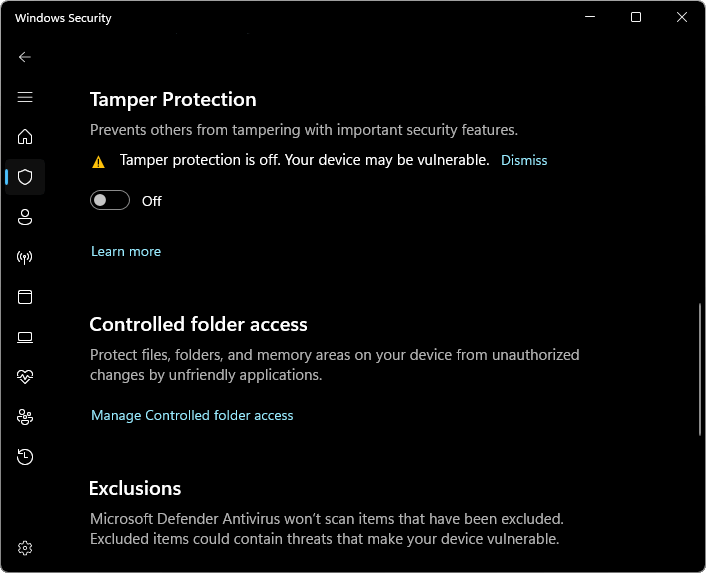
Disabling Tamper Protection may reduce your system’s resistance to unauthorized changes. Only do this if you trust the software making the changes (e.g., PC Game Booster) and plan to re-enable protection after gaming.
|
When Game Mode is deactivated, PC Game Booster will automatically turn real-time protection back on, ensuring your system remains protected once you're done gaming.
|