
Settings
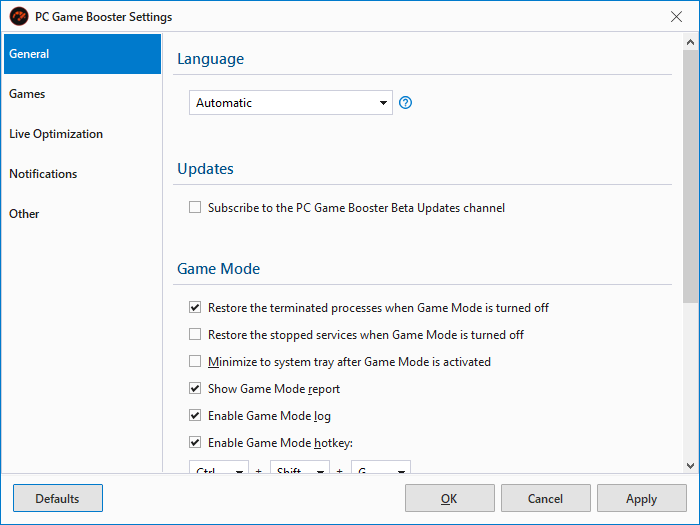
Language
Change the language used to display the PC Game Booster's user interface.
|
You must restart PC Game Booster for language changes to take effect.
|
Updates
Subscribe to the PC Game Booster Beta Updates channel
Enables access to beta versions of PC Game Booster, allowing you to test new features before public release.
Game Mode
Restore the terminated processes when Game Mode is turned off
Automatically restarts any processes or apps that were terminated when Game Mode was activated.
Restore the stopped services when Game Mode is turned off
Re-enables Windows services that were suspended during Game Mode.
Minimize to system tray after Game Mode is activated
This will close the PC Game Booster's main interface when Game Mode activation is completed. You can still manage Game Mode using the PC Game Booster app in the system tray.
Show Game Mode report
Displays a summary of all changes made to system settings when Game Mode is activated or refreshed.
Enable Game Mode log
Generates a detailed log of all Game Mode activities and system changes.
|
The Game Mode log can be found at the following location: C:\Users\[Account Name]\AppData\Local\Smart PC Utilities\PC Game Booster\Logs\Game Mode.log
|
Enable Game Mode hotkey
Allows you to activate or deactivate Game Mode using a custom keyboard shortcut.
System Integration
Run PC Game Booster at Windows startup
Launches the system tray app automatically when Windows starts.
Add "Boost with PC Game Booster" to the apps context menu
This will add the option Boost with PC Game Booster into the context menu of executable files. This option will enable you to activate Game Mode before launching the selected game or app.
Skip User Account Control warning
The Windows Task Scheduler will be used to launch PC Game Booster to bypass the User Account Control (UAC) prompts.
|
This option may decrease the PC Game Booster startup speed
|
Warn about system features that may interfere with PC Game Booster
Alerts you to system configurations or apps that may conflict with Game Mode optimizations.
Enable Debug Mode to help diagnose PC Game Booster issues.
PC Game Booster will activate the Debug Mode that logs all activities and errors that may occur while PC Game Booster is running; this may help diagnose and fix issues that may prevent you from starting or using PC Game Booster.
|
The Debug Mode log can be found at the following location: C:\Users\[Account Name]\AppData\Local\Smart PC Utilities\PC Game Booster\Logs\Debug-[FileName]-[Year]-[Day]-[Month] [Hour]-[Minutes]-[Seconds]-[ID].log
|
Create a Game Mode shortcut on the Desktop
Adds a desktop shortcut for one-click activation of Game Mode without opening the full application.
My Games
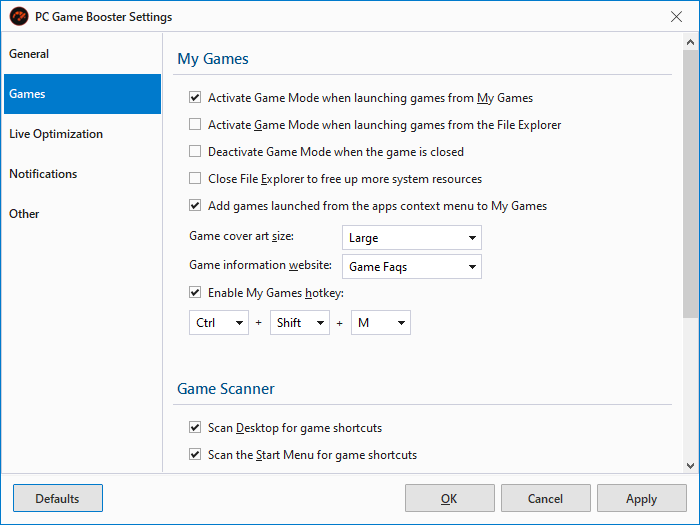
Activate Game Mode when launching games from My Games
Automatically enables Game Mode before launching any game from your My Games library.
Activate Game Mode when launching games from the File Explorer
Monitors launched processes and activates Game Mode when a game listed in your collection is started via File Explorer.
Deactivate Game Mode when the game is closed
Automatically disables Game Mode when the optimized game exits, restoring normal system behavior.
Close File Explorer to free up more system resources
Terminates the Windows Explorer process during Game Mode to reduce memory and CPU usage.
|
Use with caution, as this will close desktop and taskbar interfaces.
|
Add games launched from the apps context menu to My Games
Automatically adds games launched via the Boost with PC Game Booster option in the context menu to your My Games collection.
Game cover art size
Choose the thumbnail size used to display games in the My Games interface.
Game information website
Select the default website used to search for game details.
Enable My Games hotkey
Enable and specify the keyboard shortcut to use to open the My Games Desktop widget.
Game Scanner
Scan Desktop for game shortcuts
Searches for game shortcuts placed on your desktop.
Scan the Start Menu for game shortcuts
Scans the Start Menu directory for game-related shortcuts.
Scan the Program Files directory for installed games
Search both Program Files and Program Files (x86) for installed games.
Scan the pinned apps directory for game shortcuts
Detects games pinned to the Taskbar by scanning the pinned apps directory.
Scan Windows Game Explorer for installed games
Import games from the legacy Windows Game Explorer.
Directories to scan for games
Add additional directories where PC Game Booster can search for games.
|
Use the "+" button to add paths and "X" to remove them.
|
See Live Optimization.
Preferences
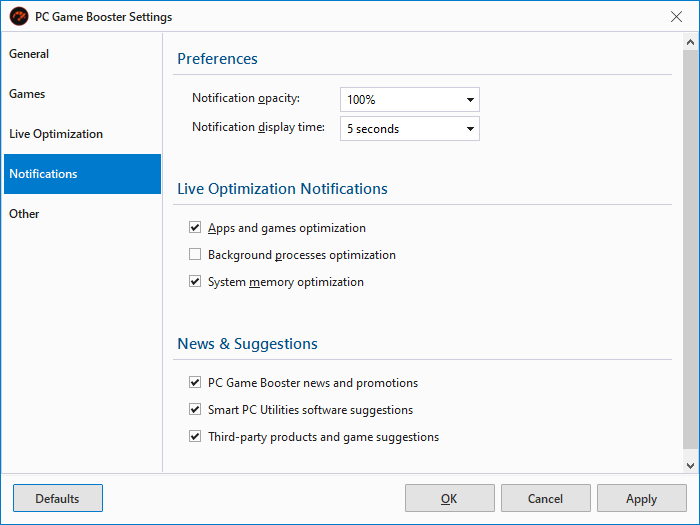
Notification opacity
Adjusts the transparency level of notification windows. A lower value makes notifications less visually intrusive
Notification display time
Sets how long notifications remain visible on screen before fading out.
Live Optimization Notifications
Apps and games optimization
Notifies you when Live Optimization boosts performance for a game or foreground application.
Background processes optimization
Alerts you when Live Optimization throttles a background process that starts consuming excessive resources.
System memory optimization
Displays a notification when Live Optimization frees up or reclaims system memory.
News & Suggestions
PC Game Booster news and promotions
Receive updates about new features, product announcements, and special offers from PC Game Booster.
Smart PC Utilities software suggestions
Get recommendations and promotions for other software developed by Smart PC Utilities.
Third-party products and game suggestions
Receive curated suggestions and offers for third-party games, services, and tools.
Hardware Monitor
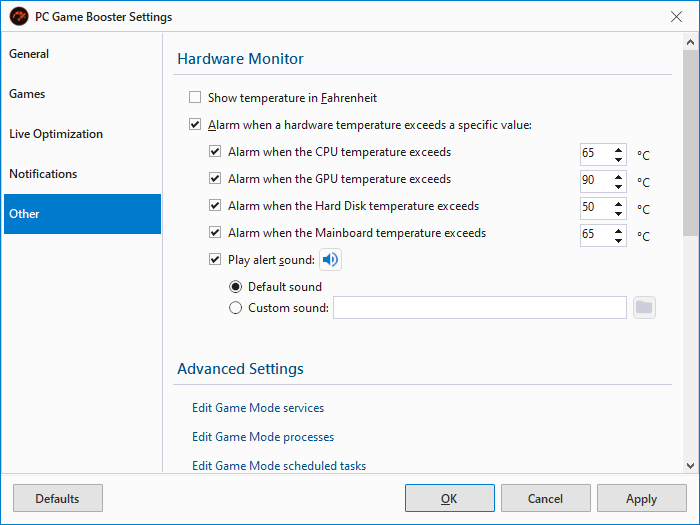
Show temperature in Fahrenheit
Displays all hardware temperature readings in Fahrenheit instead of Celsius.
Alarm when a hardware temperature exceeds a specified value
Enables global temperature monitoring. PC Game Booster will alert you if any hardware exceeds its defined threshold.
Alarm when the CPU temperature exceeds
Triggers a warning when the CPU temperature surpasses the specified limit.
Alarm when the GPU temperature exceeds
Alerts you when the GPU temperature goes beyond the defined threshold.
Alarm when the Hard Disk temperature exceeds
Notifies you if your hard drive temperature exceeds the safe operating range.
Alarm when the Mainboard temperature exceeds
Warns you when the motherboard temperature crosses the set threshold.
Play alert sound
Plays an audible alarm when any monitored hardware exceeds its temperature limit. You can choose a default or custom sound.
Edit Game Mode services
Customize the list of Windows services that will be stopped when Game Mode is activated.
Edit Game Mode processes
Define specific processes to be terminated during Game Mode for optimal performance.
Edit Game Mode scheduled tasks
Select scheduled tasks to be disabled while Game Mode is active.
Feedback & Error Reporting
Automatically send error reports to Smart PC Utilities
Enables automatic submission of error logs to help improve the software. No personal data is included.
Send additional diagnostic information along with your feedback
Includes technical details like OS version, CPU specs, and memory size with your feedback to aid troubleshooting. No personal data is collected.
Import / Export
Easily back up or transfer your PC Game Booster configuration across devices or installations.
Import Settings
Load a previously saved configuration file to restore your settings, Game Mode rules, and game library. Use the folder icon to browse and select the file.
Export Settings
Save your current configuration to a file.