
Settings Editor
The Settings Editor in PC Game Booster gives you full control over which system components are optimized or excluded when Game Mode is activated or refreshed. This allows for precise tuning based on your system configuration and gaming needs. Use these editors to manually define additional components that should be suspended or terminated during Game Mode.
|
Services Editor
|
Enter the names of Windows services to be stopped during Game Mode. Example: W32Time to suspend the Windows Time service.
|
|
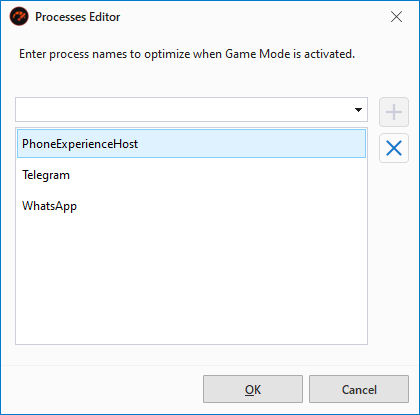
Processes Editor
|
Specify process names that should be terminated when Game Mode is activated. Example: Telegram will target all running instances of Telegram.exe.
|
|
Scheduled Tasks Editor
|
Add scheduled task paths to be disabled during Game Mode. Example: \Microsoft\VisualStudio\Updates\BackgroundDownload
|
|
Services Exclusions Editor
|
Enter Windows service names that should never be stopped by Game Mode.
|
|
Processes Exclusions Editor
|
Specify process names that should be excluded from termination.
|
|
Scheduled Tasks Exclusions Editor
|
Add scheduled task names that should remain active during Game Mode.
|
You can access these editors via the Customize button in the Game Mode Configuration window or through the Advanced Settings tab in PC Game Booster Settings.
|