
PC Game Booster Deployment
Before installing PC Game Booster, make sure your system meets the software requirements outlined here.
-
Download PC Game Booster from the Smart PC Utilities website; the software installer is ad-free, 100% malware-free, and digitally signed.
-
Launch the PC Game Booster installer with administrative privileges.
-
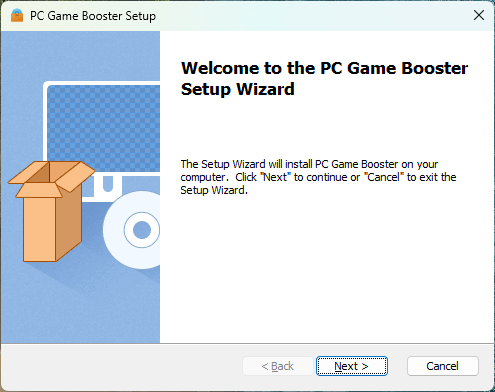
Follow the on-screen instructions to install PC Game Booster on your computer.
-
After the installation is completed, launch PC Game Booster from the shortcut placed on your Desktop or from the Start Menu/Screen.
|
To ensure a smooth installation of PC Game Booster, it's important to note that the Controlled Folder Access feature in Windows Defender may cause issues. This may include the inability to deploy application shortcuts on your Desktop or specific files on the disk. To avoid this, it's recommended that you temporarily disable Windows Defender or add the PC Game Booster installer and other related application files to the Windows Defender Exclusions.
|
|
PC Game Booster is designed to work with most anti-virus and security products, including Windows Defender. However, there are rare instances when your anti-virus software may cause issues with PC Game Booster's ability to configure and optimize system settings. If this happens, we strongly recommend adding PC Game Booster to your anti-virus exclusions list.
|
Uninstallation Guide
Windows 11
-
Press Win + I to open Settings.
-
In the left pane, open the Apps tab.
-
In the right pane, click on Apps and Features and then scroll through the installed apps to locate PC Game Booster. You can also use the search bar to find the software.
-
Click the three dots button beside PC Game Booster and select Uninstall.
-
Click the Uninstall button again to confirm the action.
-
Follow the on-screen instructions to uninstall PC Game Booster from your computer.
Windows 10
-
Press Win + I to open Settings.
-
Select Apps.
-
In the right pane, click on Apps and Features and then scroll through the installed apps to locate PC Game Booster. You can also use the search bar to find the software.
-
Select PC Game Booster from the list, then click the Uninstall button.
-
Click the Uninstall button again to confirm the action.
-
Follow the on-screen instructions to uninstall PC Game Booster from your computer.
Windows 8/8.1
-
Right click in the lower-left corner of your screen, and then click Control Panel.
-
Click on Programs, select Uninstall a program.
-
Click on PC Game Booster in the list of installed programs and select Uninstall.
-
Follow the on-screen instructions to uninstall PC Game Booster from your computer.