
My Games
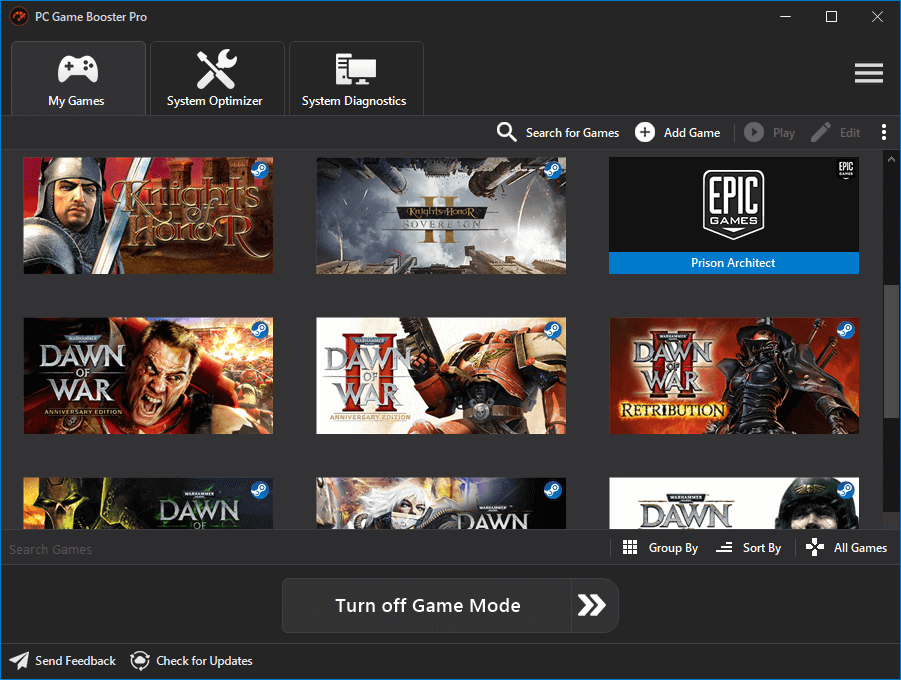
The My Games feature in PC Game Booster provides a unified hub to organize, launch, and optimize all your favorite games—whether installed locally or played online. This makes it easy to manage your entire gaming collection from one convenient place.
PC Game Booster automatically detects and imports games from popular platforms such as Steam, Epic Games, and Ubisoft Connect, saving you the hassle of manual setup. You can also manually add games that aren't linked to these platforms, including web-based titles and custom executables.
To access your game library, you use the main interface of PC Game Booster to access the My Games feature, or you can use the My Games desktop widget that you can reach using the hotkey Ctrl + Shift + M (you can customize the hotkey from the application settings) or from the application icon in the system tray.
Search for Games
Automatically scan your computer for installed games and add them to your games library. (see the Game Scanner section)
Add Game
Manually add any game—local or web-based—to your collection. This is useful for games not detected automatically or those launched via custom URLs or executables. (see the Add Game section)
Play
Launch the selected game directly from PC Game Booster.
|
Game Mode is activated by default before launching games to optimize system performance.
|
Edit
Customize game details such as title, cover image, and description.
|
Editing is limited for games imported from Steam, Ubisoft Connect, and Epic Games due to platform restrictions.
|
View
Switch between different display modes to change how your games appear in the My Games interface.
Show Hidden Games
Toggle the visibility of games you've previously hidden from your library. Useful for managing clutter or restoring access to archived titles.
Refresh Games
Update your game list to reflect recent changes.
Clear Games Cache
Clears and rebuilds the cache of games imported from Steam, Epic Games, Ubisoft Connect, and other platforms; this may help fix issues like duplicate game titles and games not being displayed correctly.
Settings
Open My Games settings. (see PC Game Booster Settings)
My Games Context Menu
Right-clicking a game in your My Games library opens a context menu with powerful tools for launching, customizing, and managing your games.
Open Location
Opens the folder where the game’s executable file is stored. Useful for accessing game files or troubleshooting
Change Cover Art
Replace the game’s cover image with a custom one of your choice. Ideal for personalization or correcting missing artwork.
Create Shortcut
Create a shortcut for the selected game for quick access.
Defrag Game Files
Defragment the game’s files to improve startup speed and loading performance. (see Game Defragment)
|
Do not defragment games stored on SSD drives, as this may reduce their lifespan.
|
Open Home Page
Opens the game’s official website in your default browser, if availableSearch Game Information
Search for details about the selected game using the website specified in My Games settings.
|
You can change the website used to search game information by going to Settings > Games > Game information website
|
Hide
Hide or unhide the selected game from your library.
|
Useful for games that cannot be removed but you want to keep out of view.
|
Remove
Remove the selected game from your My Games collection.
|
This action does not uninstall or delete the game from your computer.
|
Game Information
Open a dialog box displaying extended information about the selected game, including metadata and launch details.
Launcher Properties
Open the File Properties dialog of the game’s executable file. This allows you to inspect compatibility settings, permissions, and more.
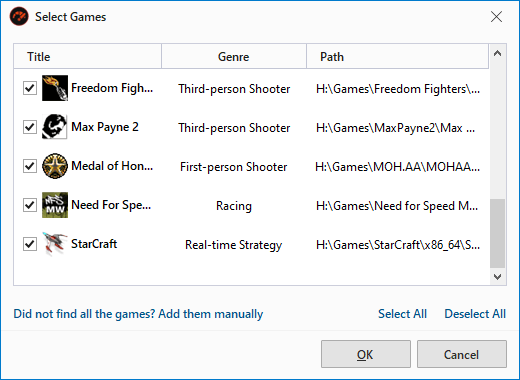
The Game Scanner feature in PC Game Booster streamlines the process of building your game library. Instead of manually adding each title, Game Scanner automatically searches your system for installed games and helps you import them into My Games with just a few clicks.
🛠️ How It Works
-
Game Scanner uses a built-in database to identify known game titles across your storage drives.
-
You can customize the scan locations by navigating to: Settings > Games > Game Scanner
🚀 Running a Scan
To initiate a scan:
-
Open the My Games section.
-
Click the Search for Games button in the upper-right corner.
The scan may take a few moments depending on the number and size of directories you've selected. Once the scan is complete, PC Game Booster displays the Select Games dialog box. Each game is listed with a checkbox, allowing you to:
-
✅ Select or deselect individual games
-
🔘 Use Select All or Deselect All for bulk actions
-
➕ Click "Did not find all the games? Add them manually" to manually include missing titles
After making your selections, click OK to add the games to your library. If you change your mind, click Cancel to exit without importing.
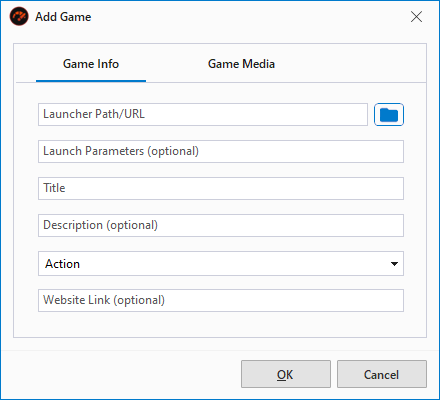
The Add Game dialog in PC Game Booster allows you to manually add new games to your My Games collection or edit the details of existing entries. This is especially useful for games not automatically detected or for customizing how games appear in your library.
Game Info
Use this tab to define the core details and launch behavior of the game:
Launcher path/URL
Specify the full path to the game’s executable file for local games, or enter a URL for web-based games.
Launch Parameters
Add command-line arguments to be passed to the game when launched via PC Game Booster. Useful for advanced configurations or custom startup options.
Title
Enter the name of the game as it should appear in your library.
Description
Provide a short description to help identify and search for the game later.
Genre
Select the game’s genre (e.g., Racing, Shooter, Strategy). This helps organize and group similar games.
Website Link
Add a URL to the game’s official website or store page for quick access
Game Media
Customize the visual appearance of the game in your library:
Icon
Upload a square image (aspect ratio 1:1) to use as the game’s thumbnail. This overrides the default icon extracted from the executable.
Cover Art
Choose a rectangular image (recommended size: 460 × 215 px) to display as the game’s cover art in the My Games interface.
Cover Art Color
Select a background color to complement the cover art.
My Games Widget
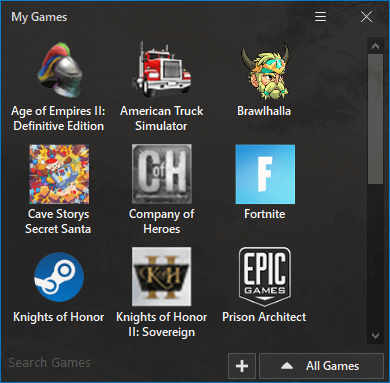
The My Games Widget offers a fast and convenient way to access and manage your game collection—without opening the full PC Game Booster interface. It’s designed for quick launching, browsing, and organizing your games from anywhere on your desktop.
🚀 How to Open the Widget
You can launch the widget using either of the following methods:
-
Right-click the PC Game Booster icon in the system tray and select My Games.
-
Press Ctrl + Shift + M (default) to instantly open the widget.
|
You can change the My Games hotkey by going to: Settings > Games > Enable My Games hotkey
|