
Game Defragment
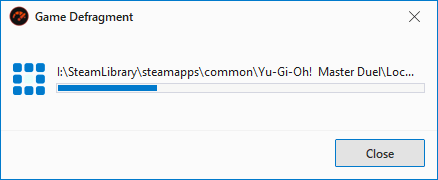
The Game Defragment feature in PC Game Booster helps improve game startup and loading times by reorganizing game files on your disk. It uses targeted defragmentation to ensure that game data is stored in contiguous blocks, reducing disk read/write delays—especially on traditional hard drives.
⚙️ What Is Defragmentation?
Defragmentation is the process of rearranging fragmented files so they occupy continuous space on the disk. This minimizes mechanical head movement on HDDs, resulting in:
-
Faster game launches.
-
Reduced loading times.
-
Smoother performance during gameplay.
|
Unlike the default Windows defragmentation tool, PC Game Booster focuses only on game folders, making the process faster and more efficient.
|
|
Do not defragment games stored on SSD drives, as this may reduce their lifespan.
|
🛠️ How to Use Game Defragment
-
Open the My Games section.
-
Right-click on the game you want to optimize.
-
Select Defrag Game Files from the context menu.
-
The Game Defragment dialog will appear and begin analyzing the selected game folder.
|
The defragmentation process may take several minutes depending on the number, size, and fragmentation level of the game files.
|
📊 Defragmentation Report
Once the game defragmentation process is complete, PC Game Booster will display a summary report showing:
-
Total number of files processed.
-
Number of files defragmented.
-
Overall fragmentation level before and after optimization.