PC Game Booster 8
Microsoft Windows 11/10/8.1

PC Game Booster enhances your gaming experience by implementing various system optimizations and performance tweaks. It helps increase your game's frames per second (FPS) and reduces loading times, resulting in smoother and more responsive gameplay in your favorite titles.
Easily manage and boost your favorite games from various platforms, including Microsoft Store, Battle.net, Steam, Epic Games, and Ubisoft, all through a single user interface. This streamlined experience allows you to access and organize your game library effortlessly.
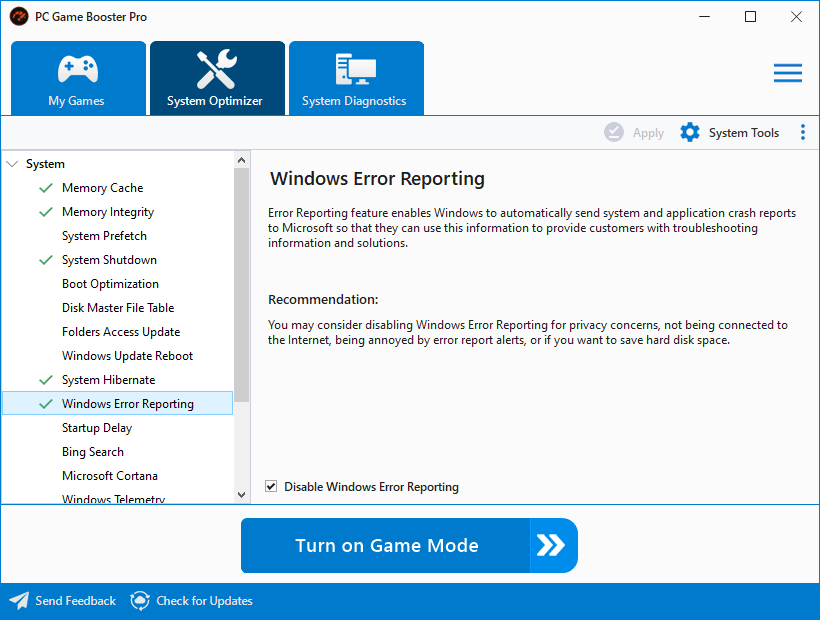
Use PC Game Booster to apply various tweaks designed to enhance both your computer's performance and network efficiency. By fine-tuning various system configurations, it aims to minimize in-game lag and prevent disruptions, creating a smoother and more immersive gaming experience with just one click.
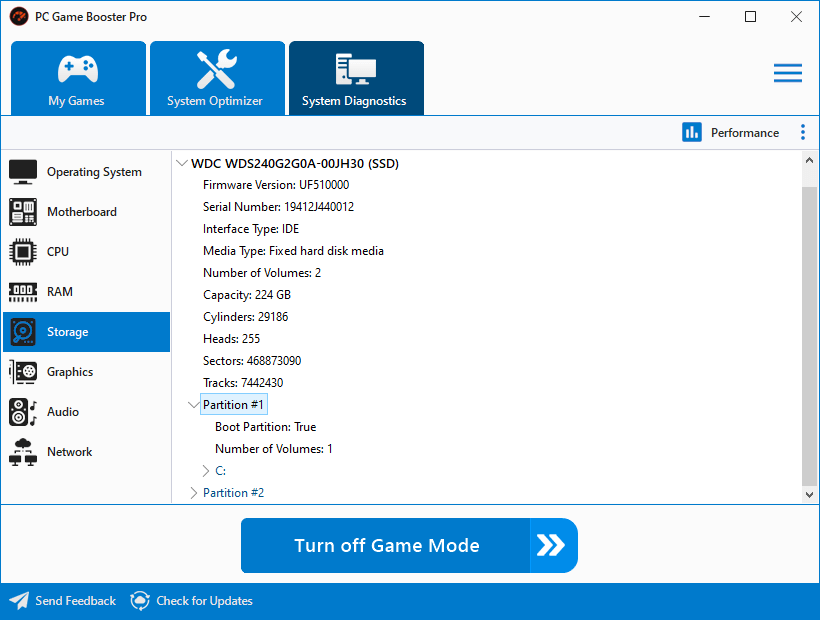
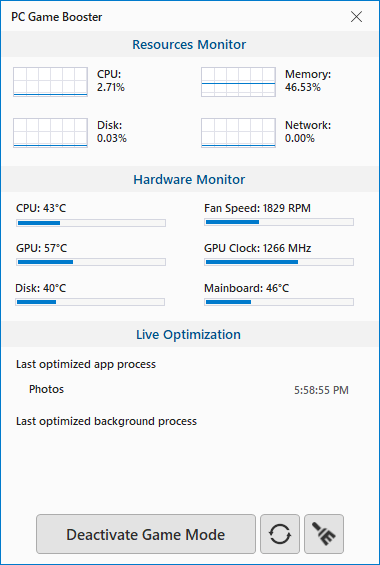
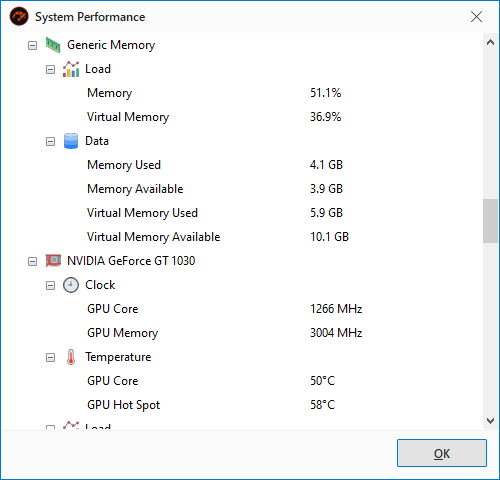
PC Game Booster intelligently monitors the performance and temperature of your CPU, GPU, motherboard, and other hardware components. It alerts you when the temperature of any of these exceeds optimal levels. This proactive feature is crucial for safeguarding your system from performance degradation and potential damage caused by overheating.
By default, Windows runs numerous background processes, services, and scheduled tasks—many of which are unnecessary during gameplay. These processes use valuable CPU, memory, and disk I/O resources, which can slow down your games. Identifying which processes are safe to disable can be challenging and requires expert knowledge. Our PC game booster simplifies this for you, allowing you to optimize your system with just one click.
Before using PC Game Booster:
Windows runs numerous background processes from both the system and third-party apps. These hidden resource drains eat up CPU, RAM, and disk I/O during gameplay. There is no easy way for average users to identify which processes can be safely suspended or terminated. The result? Laggy gameplay, lower FPS, and longer loading times.
CPU usage:
Memory usage:
Disk usage:
After using PC Game Booster:
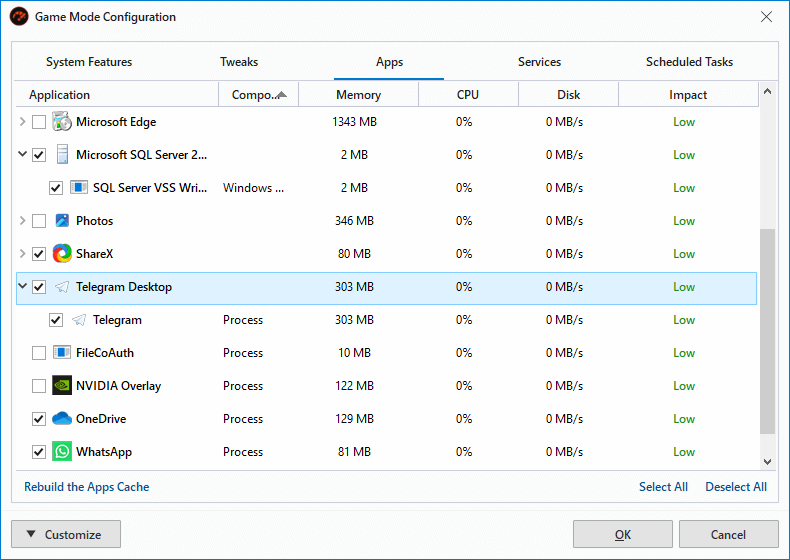
PC Game Booster uses a smart algorithm to scan and identify non-essential processes, services, and scheduled tasks from both your system and the installed applications on your computer. With just one click, PC Game Booster helps you eliminate unnecessary background overhead and free up valuable system resources. This reduces memory and CPU usage, lowers disk I/O, and delivers a high-performance gaming experience.
CPU usage:
Memory usage:
Disk usage:
Tested using Windows 11 Pro 26200.8117, Intel Core i3 10100 3.60GHz, Nvidia RTX 2080-Ti, 16 GB DDR4 RAM.
PC Game Booster doesn't just suspend background processes once; it operates continuously as a lightweight background agent to allocate CPU, memory, and disk resources to your game in real-time. Simultaneously, it prevents unnecessary background processes from consuming available system resources. This is beneficial not just for games, but also for other resource-intensive applications, such as video editing, 3D rendering, and streaming software.
Before using PC Game Booster:
Background processes compete with your game for system resources. Even if you manually close some applications, others may restart or continue to consume CPU and RAM in the background. Low memory situations can lead to stuttering, crashes, and poor performance. Your game or resource-intensive application, such as video editing software, constantly competes for system attention, resulting in FPS drops, lag, and slowdowns.
After using PC Game Booster:
PC Game Booster runs persistently to enforce resource allocation rules. It automatically restricts background processes from stealing available resources, reclaims memory when RAM is low, and gives higher processing priority to your active game and applications. This means your games run at peak performance—smoother frame rates, reduced lag—and your resource-demanding applications also benefit from more available memory and CPU power.
Tested using Windows 11 Pro 26200.8117, Intel Core i3 10100 3.60GHz, Nvidia RTX 2080-Ti, 16 GB DDR4 RAM.
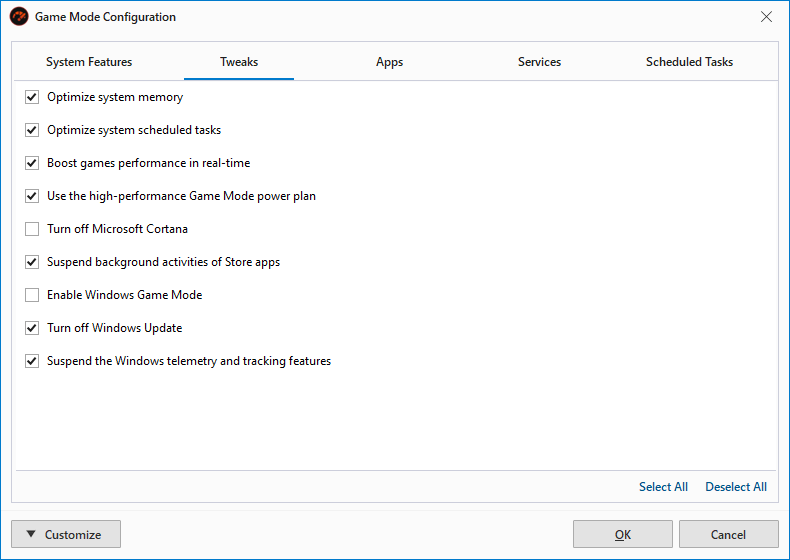
PC game booster goes beyond just managing processes; it intelligently tweaks various built-in Windows settings to reduce lag and minimize interruptions during gameplay. This results in a smoother, more seamless gaming experience. For instance, it can temporarily disable features such as Windows Update and Windows Security (Defender) scans during gameplay—functions that often run in the background, consume resources, and can lead to sudden drops in FPS or stuttering.
Before using PC Game Booster:
Windows runs several built-in features in the background while you play. Windows Update may start downloading and installing updates mid-game, consuming bandwidth and CPU. Windows Security (Defender) performs scheduled scans that hammer your disk and memory. These interruptions happen without warning, causing sudden lag spikes, FPS drops, and even game freezes. You have no easy way to temporarily disable these features without digging deep into system settings or compromising security.
After using PC Game Booster:
PC Game Booster temporarily disables non-essential Windows features that can interrupt gameplay, such as Windows Update and security scans. This reduces resource consumption and eliminates lag spikes, resulting in a smoother gaming experience without mid-game stutters or FPS drops.
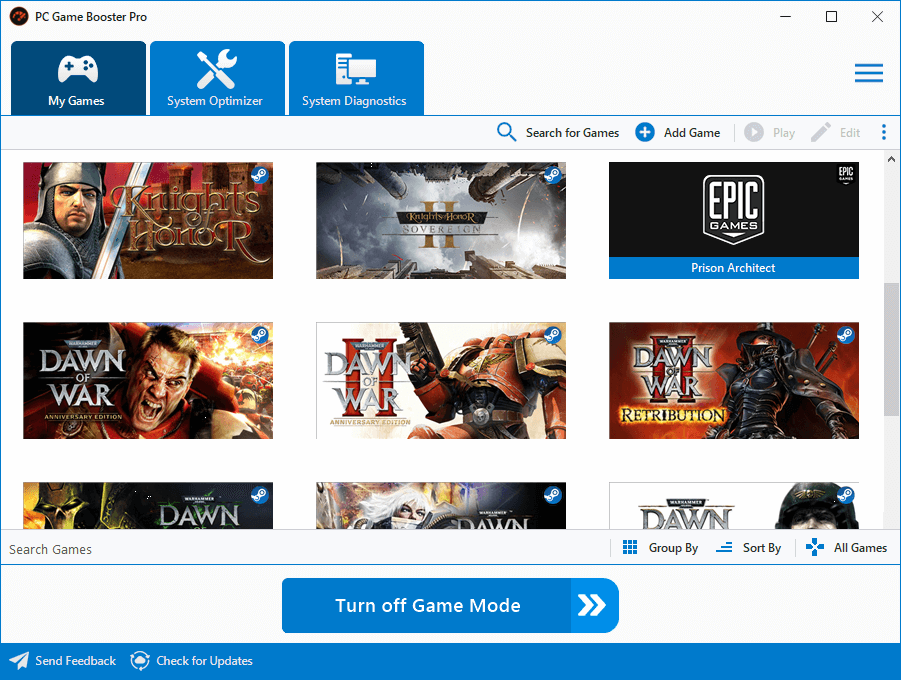
PC game booster brings together all your games from different platforms—Steam, Battle.net, Epic Games, Microsoft Store, and more—into a single, unified library. You can also add your own games manually. The My Games feature offers advanced filtering, sorting, and management capabilities to organize your collection.
Before using PC Game Booster:
Your games are scattered across multiple launchers and platforms. To find, launch, or manage your games, you have to open each launcher separately, remember which game belongs to which platform, and deal with cluttered interfaces. There is no single place to see, filter, or sort your entire collection.
After using PC Game Booster:
All your games are centralized in the My Games library, where you can launch and boost any game from any platform with one click. Advanced filtering and sorting let you organize by genre, platform, playtime, or custom tags. And with a customizable hotkey, you can instantly pull up your game library from anywhere on your Windows desktop—no need to minimize browsers or navigate folders.
PC Game Booster
FREE
PC Game Booster
PROFESSIONAL
Real-Time Game Booster
Boost your computer's performance in real time so that games and apps can utilize all available system resources.
System Optimizer
Tweak all system and Internet settings to achieve a stable and less interrupted gaming experience.
All-in-One Optimizer
Optimize all apps, processes, Windows services, and scheduled tasks from a single UI.
Automatic Updates
Automatically receive new updates that bring additional optimizations, improvements, and bug fixes.
PC Game Booster (formerly known as Game Fire) is an all-in-one game and FPS booster solution designed to enhance system performance and optimize your PC for gaming. It applies various system optimizations and allocates computer resources specifically to the applications and games you are playing. This results in improved performance and higher in-game FPS, leading to a smoother and more enjoyable gaming experience.
Yes, PC Game Booster delivers measurable improvements in frame rates and stability, as well as enhanced system and application performance and responsiveness. However, results may vary based on your hardware and current system settings.
The software helps you take full advantage of your existing hardware, allowing you to get the best possible gaming performance without the need for immediate hardware upgrades.
Absolutely. PC Game Booster's system optimizations are temporary, and you can easily reverse them by turning off Game Mode. Even if you forget to disable Game Mode, PC Game Booster will automatically restore your system to its normal state upon the next startup.
Importantly, PC Game Booster does not overclock your hardware, so you can enjoy enhanced gaming performance without risking damage to your CPU and GPU.
Yes, PC Game Booster is designed to work with most anti-virus and security products, including the default Windows security app. However, there are rare instances when your anti-virus software may cause issues with PC Game Booster's ability to configure and optimize system settings. If this happens, we strongly recommend adding PC Game Booster to your anti-virus exclusions list.
The free version of PC Game Booster offers basic game and system optimization options that help you boost in-game FPS and enhance overall performance. By upgrading to the Pro edition, you can unlock all optimization features of PC Game Booster, including Live Optimization, third-party app optimization, hardware monitoring, and many more.
Absolutely! You can download a 30-day trial version of PC Game Booster Pro to assess its features before making a purchase.

|
Game Fire is the kind of acceleration tool I especially need when playing games that seem to ignore my recent attempts at hardware updating and freeze, slow down and drag like hell. Games are rarely the avatars of speed, so accelerators are in high regard, and Game Fire can easily be listed among the best. |

|
The bottom line is that Game Fire (now PC Game Booster) is a great tool that can come in handy especially if you spend a lot of time playing video games. Less experienced users should not have any troubles while installing and customizing this program, thanks to its intuitive layout. |
Products
Support
Company
Email Newsletter
Follow Us