
PC Game Booster 8
Microsoft Windows 11/10/8.1

PC Game Booster provides a lightweight hardware monitoring feature that delivers real-time temperature tracking for your GPU, CPU, disk, and motherboard. Receive alerts when any component exceeds safe limits — protecting your hardware from overheating damage, preventing thermal throttling, and ensuring stable gaming performance.
Use PC Game Booster to monitor your system and hardware performance in real time, including CPU clock speed, GPU load, memory usage, and disk activity. Gain valuable performance and health insights to identify bottlenecks, prevent overheating, improve stability, and plan future upgrades — all from one unified dashboard.
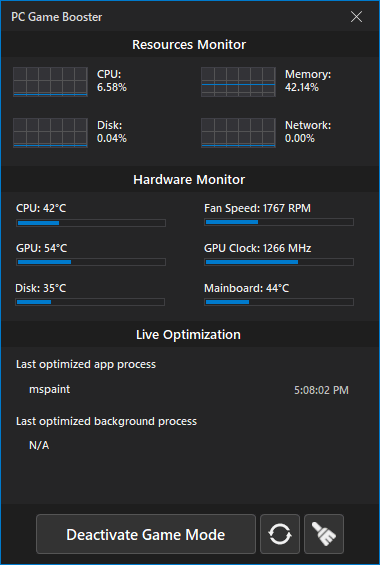
PC Game Booster integrates with LibreHardwareMonitor providing extensive hardware support and real-time sensor tracking. You can monitor your CPU, GPU, motherboard, storage drives, network adapters, and battery—all from a single interface. It is compatible with AMD, Intel, and NVIDIA hardware, including the latest Intel Arrow Lake and Meteor Lake processors and AMD Ryzen 9000 processors.
To enable PC Game Booster to monitor and alert about hardware temperature, follow these steps:
Once enabled, PC Game Booster will automatically alert you whenever any monitored hardware exceeds the defined safe temperature threshold — helping you prevent overheating and protect your gaming PC from thermal damage.
By default, PC Game Booster displays hardware temperatures in Celsius. To switch to Fahrenheit, follow these steps:
Once selected, all hardware temperature readings — including CPU, GPU, hard disk, and motherboard — will immediately appear in Fahrenheit instead of Celsius.
Safe operating temperatures vary by component type. Below are the recommended threshold ranges for modern hardware based on normal operating conditions:
CPU (Processor)
GPU (Graphics Card)
Hard Disk Drive (HDD)
SSD / NVMe Drive
Motherboard
When any monitored hardware component exceeds the safe temperature threshold you have set, PC Game Booster will immediately display a hardware temperature warning. This warning clearly shows:
The warning dialog offers you two options:
This alert system helps you stay informed about potential overheating risks while giving you the flexibility to temporarily dismiss warnings when you understand the situation — all without interrupting your gaming experience.
PC Game Booster offers a wide range of real-time information about your current system and hardware performance — including voltage, temperature, CPU cores activity, fan speeds, and more — all from the same interface.
To access this information through the main interface:
To access the System Performance desktop widget:
Antivirus programs may flag PC Game Booster because it uses Libre Hardware Monitor — an open-source library that relies on the WinRing0 kernel driver to read hardware sensors. The flag is triggered by the driver itself, not because PC Game Booster contains malware.
The WinRing0 driver has a documented vulnerability (CVE-2020-14979). Microsoft began flagging all programs that use this driver — including MSI Afterburner, FanControl, and OpenRGB — not just PC Game Booster.
PC Game Booster is fully safe to use since it does not include any adware, spyware, or telemetry. Antivirus software may flag the WinRing0 driver due to its known vulnerabilities, but this does not indicate that PC Game Booster is malicious. In fact, the risk associated with this driver is minimal for home users.
After monitoring your hardware temperatures with PC Game Booster, if you notice high CPU or GPU temperatures, you can take the following measures to lower them:
1. Clean dust from fans and vents
Dust buildup on CPU, GPU, and case fans restricts airflow and traps heat. Regularly clean your PC's interior using compressed air to remove dust from fans, heatsinks, and vents — improving cooling efficiency and lowering temperatures.
2. Upgrade the CPU fan or cooler
If your stock or existing CPU cooler is insufficient, consider upgrading to a higher-performance air cooler or liquid cooling system. A better cooler dissipates heat more effectively, keeping your CPU temperatures under control during intense gaming sessions.
3. Apply new thermal paste
Thermal paste degrades over time, losing its ability to transfer heat from the CPU/GPU to the cooler. Reapplying high-quality thermal paste can reduce temperatures by several degrees, especially on older systems.
4. Check processes that cause high CPU or GPU usage
Use PC Game Booster or Task Manager to identify background processes consuming excessive CPU or GPU resources. Terminate or disable unnecessary applications and services that cause high usage — reducing workload and lowering temperatures.
5. Switch to a balanced power plan
High-performance power plans force your CPU and GPU to run at maximum performance levels constantly — even when not needed — leading to unnecessarily high temperatures. Switching to the Balanced power plan in Windows allows your components to dynamically adjust performance based on workload, significantly reducing heat generation during idle or light tasks while still delivering full power when gaming.
Products
Support
Company
Email Newsletter
Follow Us