

PC Game Booster 8
Microsoft Windows 11/10/8.1

PC Game Booster is your all-in-one game launcher. It automatically imports your games from Steam, Epic Games, Microsoft Store, Ubisoft Connect, and other platforms, so you never have to hunt through different libraries again — letting you launch, manage, and boost any title with one click.
Beyond importing titles from popular platforms, PC Game Booster empowers you to build your very own custom library. Scan your PC to discover and add legacy games to your collection. Add games manually wheher local or online to your collection and personalize every entry with custom thumbnails, cover art, and launch parameters. The My Games feature of PC Game Booster offers powerful features to manage your game library such advanced game grouping, bookmarking, and sorting.
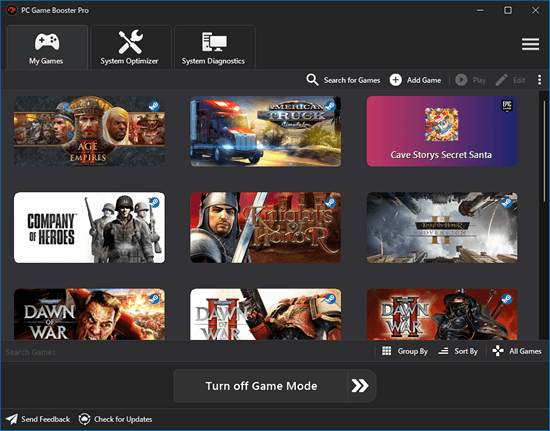
You do not need to activate Game Mode manually, as PC Game Booster automatically activates the game booster the moment you launch any library-added title, whether you launch it from your desktop or through other game clients such as Steam. This automatic game boost kicks in seamlessly, optimizing your system in real time without any extra clicks. When you're done gaming, PC Game Booster automatically restores your system to its previous state.
The My Games feature in PC Game Booster provides a unified hub to organize, launch, and optimize all your favorite games — whether installed locally or played online. It is used to manage your entire gaming collection from one convenient place.
PC Game Booster automatically detects and imports games from popular platforms such as Steam, Epic Games, and Ubisoft Connect, saving you the hassle of manual setup. You can also manually add games that aren't linked to these platforms, including web-based titles and custom executables.
You can access your game library in two ways:
To open the My Games widget:
To manually add games to your library, click the Add Game button in the My Games section. The Add Game dialog allows you to define the following details:
You can also customize the visual appearance by uploading:
PC Game Booster includes a Game Scanner feature that searches your system for installed games and helps you import them into My Games with just a few clicks. To run a scan:
Game Scanner uses a built-in database to identify known game titles across your storage drives. You can customize the scan locations by navigating to Settings > Games > Game Scanner.
Once the scan is complete, PC Game Booster displays the Select Games dialog box to allow you to choose which games to add to your game library.
PC Game Booster currently supports automatic game detection and import from the following game platforms:
We are actively working to add support for additional game platforms, such as the Rockstar Games Launcher and the EA App (origin).
Yes, you can choose exactly which game platforms you want PC Game Booster to import games from.
This gives you full control over which games appear in your My Games library — helping you keep your collection organized and focused only on the platforms you actually use.
Products
Support
Company
Email Newsletter
Follow Us