

PC Game Booster 8
Microsoft Windows 11/10/8.1

PC Game Booster is an effective solution to boost in-game frames per second (FPS). Unlike other game boosters, it not only suspends unnecessary features to enhance performance but also works in the background to manage running processes to enable games and applications you use to receive priority access to the CPU, GPU, and RAM, while preventing non-essential components from consuming available resources. All of this occurs without compromising system stability, resulting in smoother gameplay, higher frame rates, and no FPS drops.
PC Game Booster makes it easy to detect and suspend processes, Windows services, and scheduled tasks from both system and third-party apps — helping improve performance and reduce overhead. Normally, users would need expert knowledge to identify which processes and services belong to a specific app and whether it is safe to suspend during gameplay. However, PC Game Booster eliminates this complexity by using a smart algorithm that detects and suspends those components in one click, and automatically restores them after you finish gaming.
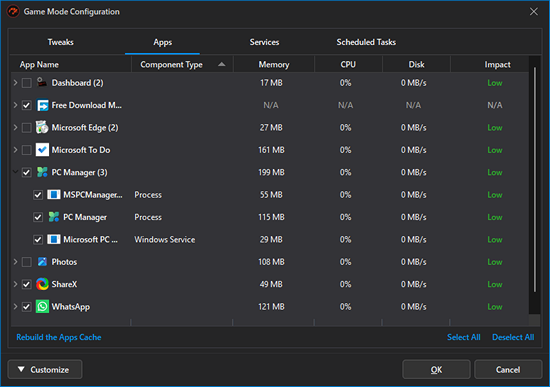
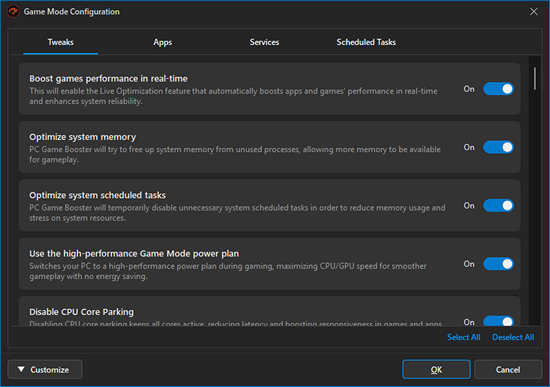
PC Game Booster streamlines your gaming experience by disabling non-essential Windows features such as Windows Update and Windows Defender scans, which can cause stuttering, FPS drops, and lag during gameplay. Beyond disabling these features, PC Game Booster also applies several system tweaks to optimize your PC for gaming — including the activation of a dedicated game power plan, disabling Windows visual effects, and fine-tuning other performance-critical settings. With just one click, it temporarily disables all resource-intensive functions, then automatically restores everything after gaming.
Yes, PC Game Booster delivers measurable improvements in frame rates and stability, as well as enhanced system and application performance and responsiveness. However, results may vary based on your hardware and current system settings.
The software helps you take full advantage of your existing hardware, allowing you to get the best possible gaming performance without the need for immediate hardware upgrades.
Live Optimization is a dynamic feature in PC Game Booster — a powerful FPS booster and app optimizer — that enhances your system's performance and responsiveness while gaming or using resource-intensive applications. It works intelligently in real time by managing process priorities and memory usage, helping boost FPS and optimize Windows for smoother gameplay without manual intervention.
Live Optimization uses three core mechanisms to boost FPS and enhance gaming performance:
Live Optimization is part of Game Mode. To enable this powerful game booster feature:
When Game Mode is activated, PC Game Booster automatically enables Live Optimization and displays a confirmation notification in the lower-right corner of your screen.
Yes. When Live Optimization boosts or throttles a process, a notification appears in the lower-right corner of your screen, informing you which process was optimized.
You can customize these notifications by going to Settings Notifications Live Optimization Notifications, so you stay informed about how PC Game Booster helps optimize Windows during gameplay.
The Live Optimization Log provides a detailed record of all real-time optimization actions performed by PC Game Booster. It helps you monitor exactly how the game booster adjusts process priorities to boost FPS and enhance performance.
To open the Live Optimization Log:
You can exclude a process from Live Optimization in two ways to fine-tune how PC Game Booster helps optimize your PC:
Once excluded, Live Optimization will no longer boost, throttle, or reclaim memory from that process.
System Optimizer is a powerful feature in PC Game Booster that provides a suite of tweaks designed to enhance system responsiveness, reduce background interruptions, and improve internet connectivity — all of which help boost FPS and optimize Windows for gaming. These tweaks are especially useful for gamers seeking smoother gameplay and faster system behavior.
System Optimizer organizes tweaks into four intuitive categories:
Each tweak includes a description of the default Windows behavior and a recommendation explaining how PC Game Booster modifies it for better performance.
Products
Support
Company
Email Newsletter
Follow Us