
When Microsoft Windows starts up, it can automatically launch certain programs as soon as you log in. This functionality can significantly enhance user experience; for example, your antivirus software activates right away, ensuring immediate protection. Additionally, cloud storage services can begin syncing without delay, and communication applications such as Zoom or Slack are prepared for use instantly.
While startup programs are important, having too many can harm your computer’s performance. Each one that launches at startup uses CPU resources, memory (RAM), and disk input/output, which can slow down your system before you even start working.
A bloated startup not only causes inconvenience but also presents security risks. Each program can serve as a potential entry point for malware, particularly if outdated applications with known vulnerabilities are allowed to run automatically. Furthermore, some malicious programs disguise themselves as legitimate startup apps, ensuring that they activate and reinfect your system every time you boot up.
For these reasons, we need tools to manage, optimize, and verify startup programs to ensure that only the applications necessary for our daily tasks are activated. This approach will help enhance system speed and improve security. However, before we get started, it is essential to understand the different types of startup components in Windows.
Startup Programs
These are programs that typically appear in your system tray (the notification area near the clock) or launch visible windows. Examples include Spotify, Discord, Slack, and Zoom. These applications are the easiest to identify and manage since they are user-facing.
Windows Services
Services are background processes that run without a user interface. They perform essential functions such as networking, printing, and security. While some services are critical for system operation, others may be installed by third-party software and run silently in the background, consuming system resources without your awareness.
Scheduled Tasks
The Windows Task Scheduler can launch programs at specific times, including at startup or in response to specific events. Many developers prefer using scheduled tasks instead of traditional startup entries to keep their software updated or perform background activities. These tasks are often hidden deeper within the system and can easily be overlooked.
Windows does provide native tools to manage each type of startup components. Let’s examine what’s available and how they can help optimize the startup process.
Settings App
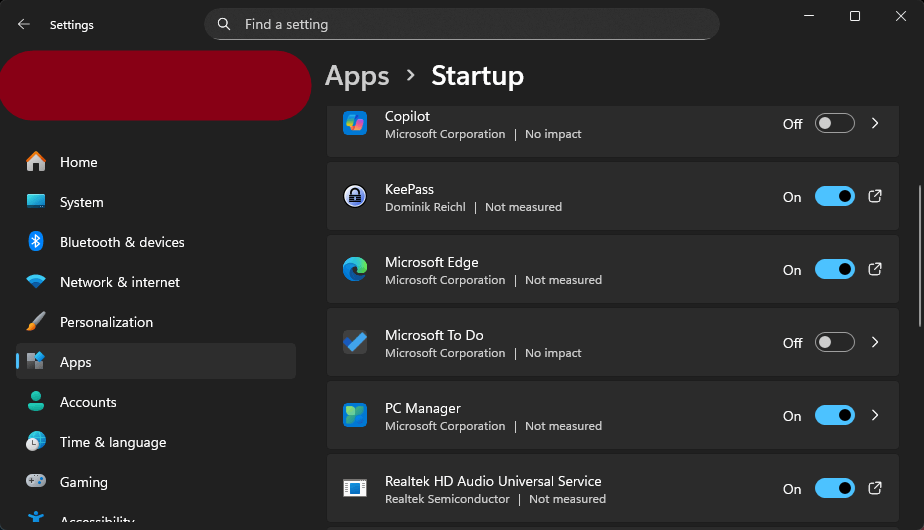
If you prefer a modern, touch-friendly interface, the Windows Settings app is a good starting point.
- Open the Start menu and type Settings, then choose the Settings app.
- Navigate to Apps > Startup.
- You’ll see a list of applications that can run at login. You’ll notice a toggle switch next to each app, along with an impact rating.
This view is simple and effective for beginners. You can instantly flick the toggle to “Off” for any app you don’t need immediately after booting up.
Task Manager
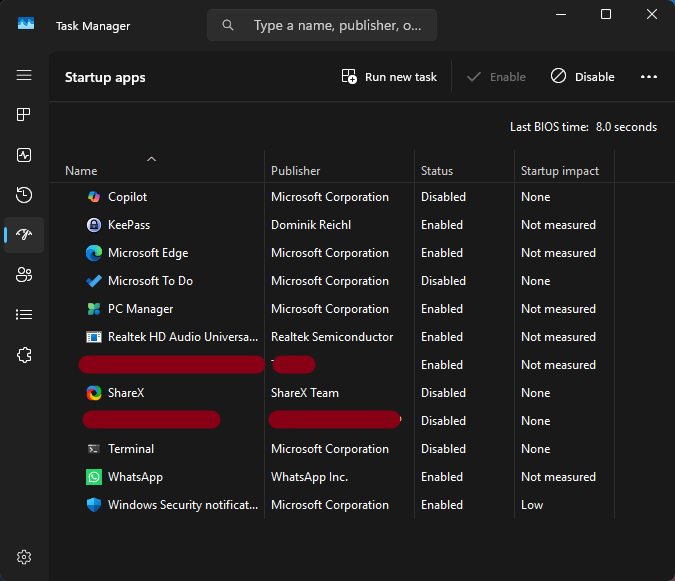
For a slightly more technical view, the Task Manager remains the go-to tool for many.
- Press Ctrl + Shift + Esc to open Task Manager.
- Navigate to the Startup apps tab from the left pane.
This Windows tool provides basic information about startup applications and includes basic functions to enable, disable, and verify them. You can view the “Publisher” name and the current “Status” of each application. Additionally, you can use Task Manager to open the file location of a specific startup program for further investigation.
Services.msc
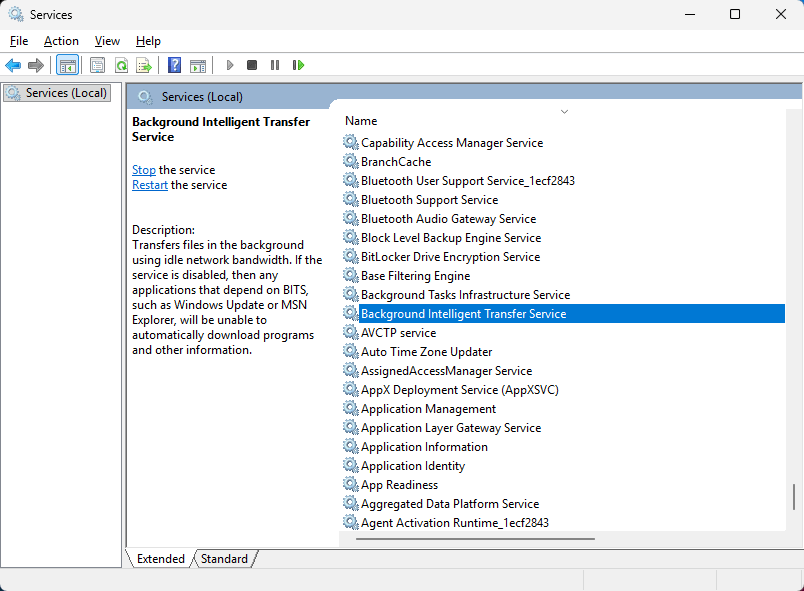
Besides startup programs, your computer runs many background processes known as Windows Services. While you can manage them with tools like the command-line utility sc.exe, the easiest option is to use the Microsoft Management Console. Just type services.msc into the search bar and hit Enter to open it.
You will be presented with a list of every installed service on your machine. This includes critical system services essential for Windows to function, as well as services created by third-party applications like NVIDIA, Adobe, or your antivirus software.
Services.msc allows you to retrieve information about installed Windows services, including name, description, and dependencies. You can use this tool to change how the service launches (Automatic, Manual, or Disabled).
There is a significant risk involved. While turning off unnecessary services can optimize Windows startup and enhance performance, disabling the wrong service could lead to serious issues. A solid understanding of each service’s function is essential.
Try our PC Services Optimizer to help you optimize non-essential Windows services. It does not require extensive knowledge of Windows services, as it automatically adjusts them according to the user’s needs.
Task Scheduler
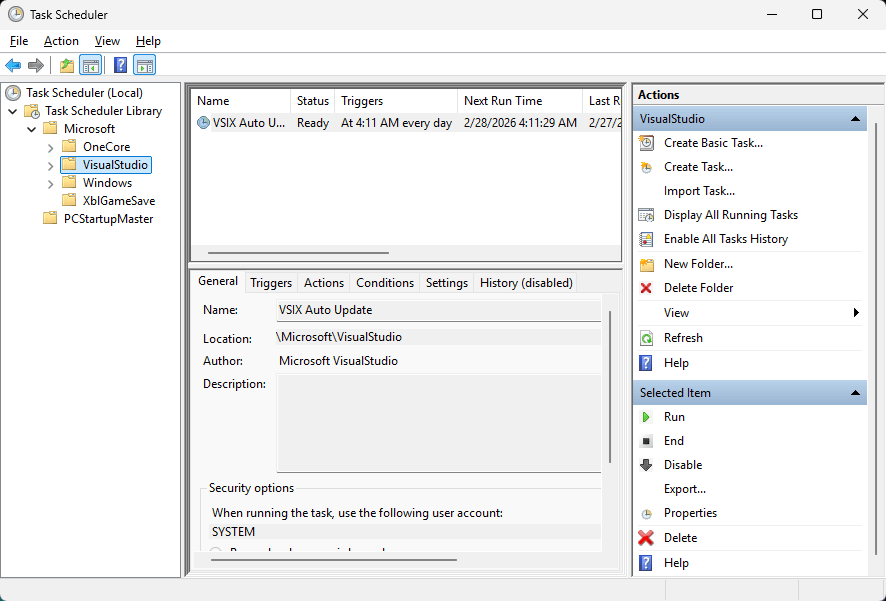
Did you know that many programs bypass your standard startup folder entirely? Instead, they schedule themselves to launch at specific times or events using the Task Scheduler. This is a powerful Windows component that automates tasks, but it’s also a favorite hiding spot for bloatware and adware.
To access the Windows Task Scheduler, type Task Scheduler in the Windows search box and click the corresponding result. The interface might look complex at first, but it is logically organized.
In the left pane, you’ll see a folder tree labeled Task Scheduler Library. This structure contains all scheduled tasks installed on your system, neatly organized into folders.
When you select a folder, the Task Scheduler displays the tasks in it. You’ll see crucial details for each task, including its name, status, triggers, and actions.
Why this matters for system startup: Many tasks are set to trigger “At logon” or “At startup.” By moving these to a delayed trigger or disabling them entirely, you can significantly optimize Windows startup.
While Task Scheduler offers immense control, it presents the same problem as services.msc: a lack of guidance. The descriptions are often cryptic, and there’s no safety rating. Therefore, this tool is best suited for advanced users who understand the function of each task.
Check out our PC Tasks Optimizer, a robust solution for adjusting unnecessary Windows scheduled tasks. With simple and user-friendly options, you can make changes with just a click of the mouse, eliminating the technical complexities typically associated with Windows operating system tasks.
Optimize Windows Startup with PC Startup Master
Windows provides excellent built-in tools for managing various startup components, including Windows services and scheduled tasks. However, these tools lack certain features that would make it easier to manage and verify startup programs. This limitation can hinder efforts to gain control over the system startup process, ultimately affecting boot speed and security.
We designed PC Startup Master to address the shortcomings of Windows’ native tools. It enhances the startup management process by adding intelligence and automation. Below, we will outline the key features of PC Startup Master that could potentially help you optimize the Windows startup process.
1. Manage All from a Single Interface

You may have noticed that Windows provides different tools to manage various types of startup components. For example, you can use Task Manager to manage startup programs, Services.msc is for Windows services, and Task Scheduler handles scheduled tasks. Each of these tools has its unique functions, layout, and learning curve, which can make managing startup settings a tedious and time-consuming process.
PC Startup Master addresses this issue by bringing everything together in one unified user interface. Instead of switching between multiple Windows utilities, you can view and manage startup programs, Windows services, and scheduled tasks all in one place. This tool offers a consistent set of controls that work across all component types, allowing you to enable, disable, or investigate any startup item without the hassle of changing contexts.
In upcoming releases, PC Startup Master will utilize AI to assist users in understanding the functions of startup apps. This will help you determine whether these programs are necessary or can be safely optimized. Rather than relying on guesswork or lengthy online searches, you will receive clear, easy-to-understand explanations of each startup item, along with personalized recommendations tailored to your specific system configuration.
2. Powerful Set of Tools to Optimize Windows Startup
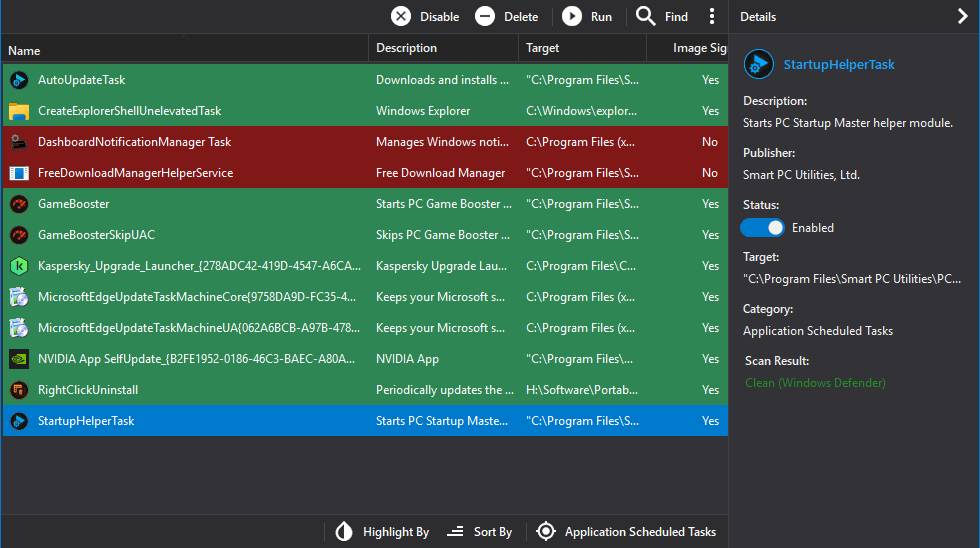
PC Startup Master is a versatile tool that allows you to not only disable unnecessary startup applications but also perform advanced tasks to batch manage startup items, such as delaying, editing, and deleting them. This flexibility lets you customize your startup sequence instead of just turning items on or off.
The application includes a powerful filtering and sorting system that makes it easy to identify and optimize the startup components that are most relevant to you. You can filter startup programs by their location, while services and scheduled tasks can be filtered by their origin. This feature effectively distinguishes between system components, Microsoft components, and items installed by third-party applications.
Moreover, you can sort and highlight startup items using various criteria, including their status, target path, location, and digital signature.
3. Create New Startup Programs
In Windows, you can add a program to the system startup by dragging its shortcut into the Startup folder located at: C:\Users[Account Name]\AppData\Roaming\Microsoft\Windows\Start Menu\Programs\Startup. This method is useful for automatically launching your most frequently used applications upon login.
However, this approach has its limitations. It only works for traditional desktop applications, and it does not allow for customization of how the program launches.
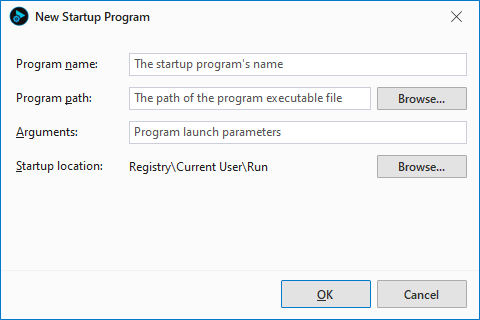
PC Startup Master provides a more comprehensive solution for adding startup items. This application allows you to create new startup entries with advanced options, including a custom startup location and command arguments.
Most importantly, PC Startup Master can also add Microsoft Store apps to system startup, ensuring that all your essential tools—whether they are classic desktop software or modern Store apps—are ready when you need them.
4. Delay Programs to Optimize Windows Startup
Windows provides a native mechanism to delay the launch of startup programs, which helps minimize performance overhead during the initial boot phase. However, this built-in delay applies uniformly to all programs and does not allow for customization.
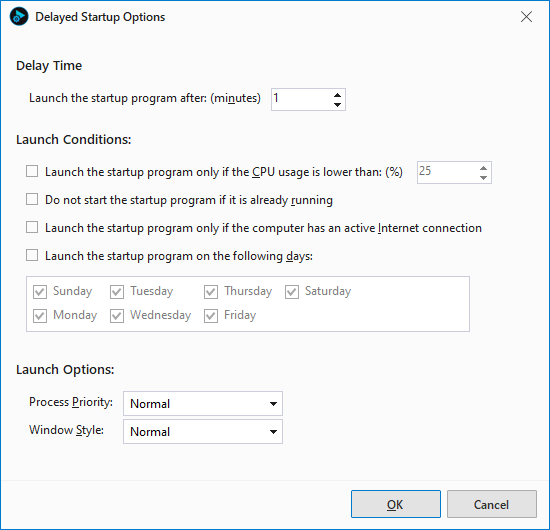
PC Startup Master enhances this concept by enabling you to customize the delay for each program. You can set a specific waiting period in minutes before a particular application launches.
In addition to simple timing, PC Startup Master introduces conditional launch logic. This allows you to configure startup programs to launch only when certain system conditions are met. For example:
- CPU: Launch the program only if CPU usage falls below a threshold you define. This prevents background tools from competing with your active work.
- Network: Delay the launch until the computer has an active internet connection. This is ideal for cloud storage applications or messaging apps.
- Day-Specific: Choose specific days of the week for each program to run. For instance, you might want work communication tools to launch only on weekdays (Monday through Friday) while keeping weekends free for gaming or relaxation.
5. Startup Guard and Security Insights
When it comes to security, the native tools in Windows provide limited insight into whether a startup item is safe or malicious. While they display the name and publisher of each item, they do not offer any verification or reputation data. This leaves users uncertain about whether a suspicious entry is a legitimate application or disguised malware.
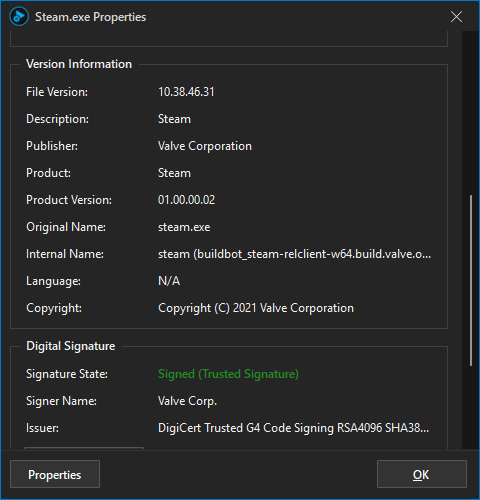
PC Startup Master addresses this gap by offering comprehensive security insights that help identify unsafe and malicious applications attempting to masquerade as legitimate startup programs. The tool automatically verifies the digital signature of each startup item, clearly highlighting any unsigned applications that could pose a risk.
For deeper investigation, PC Startup Master features a custom properties dialog that reveals extensive file details. Simply click on any target file in the right pane to open this dialog.
Additionally, PC Startup Master automatically scans each startup item using your currently installed antivirus software, providing an extra layer of protection.
The upcoming release of PC Startup Master will feature a built-in malware scanning engine and a reputation system. This engine will analyze files locally, while the reputation system will cross-reference community data to quickly identify known threats.
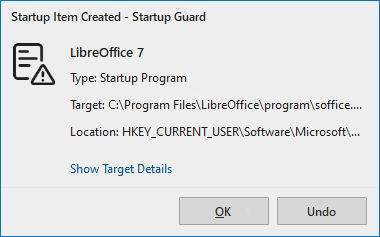
One of the most impactful security features in PC Startup Master today is Startup Guard. This proactive monitoring system oversees your startup configurations and alerts you immediately when any changes occur. When PC Startup Master detects a change, it will display a detailed notification, allowing you to choose whether to accept the change or undo it. This effectively prevents unsafe programs and malware from achieving persistence on your system.
Conclusion: Take Full Control of Your Windows Startup
A slow-booting PC is often caused by an accumulation of unneeded startup programs, services, and scheduled tasks over time. While Windows offers built-in tools like Task Manager, Services.msc, and Task Scheduler for managing these components, they can be fragmented, difficult to navigate, and lack comprehensive security insights. As a result, many users either overlook the importance of optimizing their startup processes or inadvertently disable essential system functions.
PC Startup Master addresses these issues by consolidating everything into a single, user-friendly interface. It simplifies the management of startup applications, services, and scheduled tasks while also incorporating smart features such as conditional delayed startup, digital signature verification, and real-time protection via Startup Guard. Whether you opt to use Windows’ tools for quick adjustments or choose PC Startup Master for more thorough optimization, taking action today is essential. By doing so, your computer will boot faster, operate more securely, and maintain this performance over the years.
Leave a Reply Cancel reply